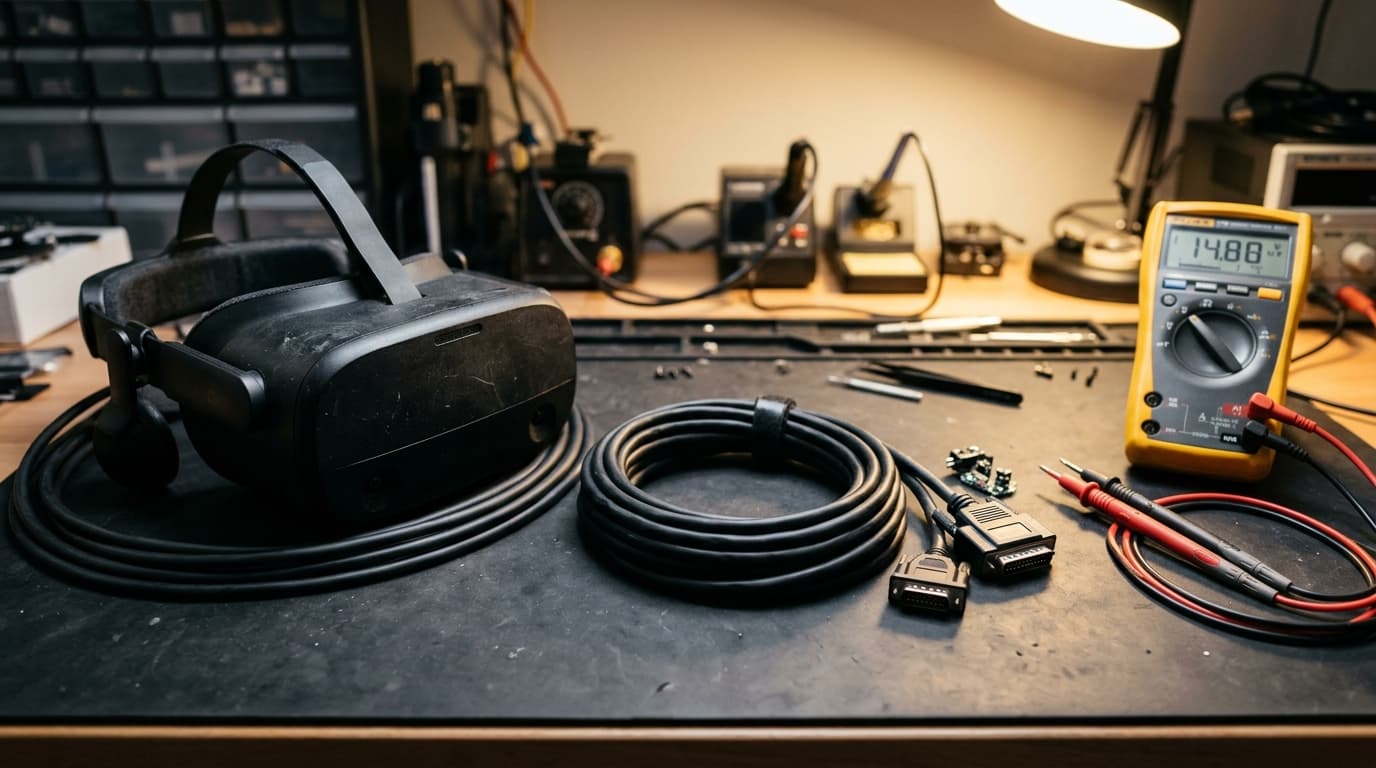
Quick Answer & Technician Key Takeaways
- SteamVR Error 436 and sparkling pixels (colorful static) almost always point to DisplayPort signal loss caused by internal wire fatigue in the main tether cable or a loose breakaway connector.
- Safe 10-minute home checks include reseating the trident breakaway plug, testing a different GPU DisplayPort, and toggling DisplayPort Training Mode in SteamVR settings.
- Risky internet DIY hacks like spraying contact cleaner into the headset socket, bending the cord with zip ties, or prying glued housings often turn a simple cable swap into expensive motherboard damage.
- If a brand-new tether cable still produces Error 436 or red LEDs, the microscopic OCuLink-style socket inside the headset brow may have lifted solder pads that require micro-soldering.
- RockIT Repairs offers free nationwide FedEx Ground shipping, a free hands-on bench checkup, and a 90-day parts and labor warranty on all Valve Index repairs.
Few things ruin a VR session faster than putting on your Valve Index, launching SteamVR, and getting hit with Error 436: Display Connection Trouble, a snowstorm of colorful sparkling pixels, or two angry flashing red LEDs staring back at you from the front visor. When your headset suddenly drops to black, it is tempting to search forums and try the fastest DIY trick you can find. Unfortunately, many viral fixes do far more harm than good.
Technician Summary: SteamVR Error 436, sparkling pixels, and flashing red headset LEDs on the Valve Index are almost always caused by DisplayPort signal loss from a fatigued tether cable or a damaged internal brow socket. Safe 10-minute checks like reseating the breakaway plug and toggling DisplayPort Training Mode can rule out software glitches, while risky DIY hacks like spraying contact cleaner or bending cords with zip ties often destroy the motherboard socket. When a simple cable swap is not enough, targeted component repair at RockIT Repairs restores your headset for a fraction of replacement cost.
Tether Cable vs. Headset Socket: What Is Actually Failing?
As Co-Founder and Systems Lead at RockIT Repairs in Fredericksburg, Virginia, I see Valve Index headsets arrive on our bench every week with the exact same trio of symptoms: Error 436, colorful static, and blinking red visor lights. To understand why these happen, it helps to look at how the Index moves data.
Unlike standalone headsets, the Valve Index pushes massive, uncompressed dual-display video and audio through a single long tether cable. Every time you turn around in room-scale VR, coil the cord tightly, or accidentally roll a desk chair over it, the microscopic copper strands inside that cable flex. Over time, those strands fatigue and snap inside the outer jacket, even when the rubber looks spotless from the outside.
When the Main Tether Cable Is the Culprit
In roughly eight out of ten cases we test, the main tether cable is the weak link. You will usually notice early warning signs before Error 436 becomes permanent:
- Sparkling Pixels (Snowflakes): Tiny red, green, or blue dots dancing across dark loading screens are classic DisplayPort bit errors.
- Audio Popping or Crackling: Because digital audio shares the same shielded bundle, you may hear sharp pops right before the screen cuts out.
- Position-Sensitive Flicker: The display drops to black only when you look up, turn left, or touch the cable near the breakaway junction.
When the Headset Brow Socket Is Damaged
Sometimes, a player replaces the tether cable and still gets Error 436 and flashing red LEDs. When that happens, the problem usually lives inside the headset brow where the tether plugs into the mainboard. Because the Index uses a tiny, high-density connector tucked behind the face gasket, heavy tugs on the cord can rip the microscopic solder pads right off the circuit board. At that point, no amount of software tweaking will bring the display back.
Safe 10-Minute Home Checks You Can Try Right Now
Before assuming you need a new cable or Error 436 mail-in repair, run through these gentle, zero-risk checks. They take less than ten minutes and will not void warranties or damage delicate pins.
- Reseat the Trident Breakaway Junction: Close SteamVR completely and unplug the wall power brick. Firmly pull apart the middle breakaway connector on the tether cable, inspect both ends for dust, and push them straight back together until they sit flush.
- Swap GPU DisplayPort and USB 3.0 Ports: Graphics card ports can wear out or conflict with multi-monitor setups. Move the Index DisplayPort plug to a different port on your GPU, and plug the USB 3.0 lead directly into a rear motherboard port rather than a front-panel hub.
- Toggle DisplayPort Training Mode in SteamVR: Open SteamVR Settings, navigate to Video, and switch DisplayPort Training Mode between Compatibility Mode A and Mode B. According to the Valve Index & SteamVR Official Hardware Troubleshooting Guide, this helps resolve handshake timing issues on certain GPUs.
- Test Without Extension Cables: If you are using a DisplayPort repeater or USB extension, remove it temporarily and plug the trident cable straight into your PC.
- Check Base Station vs. Headset LEDs: Make sure the blinking red light is actually on the headset visor. If a wall-mounted tracker is blinking red, that is a separate mechanical laser issue covered under our Base Station 2.0 repair service.
Risky Internet DIY Myths That Destroy Valve Index Hardware
When a $500 headset stops working, frustration makes people try desperate tricks they read on old forum threads. On our workbench, we regularly see minor cable issues turned into expensive board-level emergencies by these four popular DIY myths:
- Myth 1: Spraying Contact Cleaner Into the Headset Socket: Liquid cleaner does not fix broken solder joints. Worse, it wicks into the optical housing, leaves oily residue on internal ribbon cables, and can short out power rails the moment you plug the power brick back in.
- Myth 2: Zip-Tying or Bending the Cord to Force a Connection: Wrapping the tether tightly with zip ties or taping it at a sharp angle against the head strap puts relentless mechanical leverage on the internal brow socket. You might get ten more minutes of play, but you are actively prying the socket off the motherboard.
- Myth 3: Using Abrasive Pastes or Metal Picks on Pins: Scraping tiny DisplayPort or OCuLink-style pins with needles, sandpaper, or abrasive pastes strips away the microscopic gold plating, causing permanent corrosion and intermittent shorts.
- Myth 4: Prying Open Glued Visor Housings at Home: The Valve Index brow and optical assembly are tightly packed with fragile flex cables. Prying the plastic apart without proper heat and ESD tools frequently tears the display or camera ribbons.
Valve Index Error 436 Diagnostic Comparison Table
Use this quick reference table to match what you see on your headset with what is happening inside, the safest check to try, and the permanent bench fix.
| Symptom You Notice | What Is Happening Inside | Safe At-Home Check | Permanent Bench Fix |
|---|---|---|---|
| Error 436 with black screen, no audio | Complete DisplayPort handshake failure in tether or GPU port | Reseat breakaway plug and test another GPU DisplayPort | Full tether cable replacement or GPU handshake verification |
| Colorful sparkling pixels and audio pops | Internal copper wire fatigue causing DisplayPort bit errors | Keep cord slack and test DisplayPort Training Mode A/B | Install a brand-new, factory-spec main headset tether cable |
| Flashing red visor LEDs on startup | Critical power or data drop between brow socket and mainboard | Unplug power brick for 60 seconds and reboot SteamVR | Micro-solder lifted brow socket pads or replace damaged flex |
| Screen flickers only when turning head | Broken shielding or kinked conductors near the head strap clip | Gently support the cable without bending or zip-tying it | Replace fatigued tether and secure proper strain relief |
How to Protect Your New Tether Cable From Early Fatigue
Once your Valve Index is back up and running, a few simple habits will double the lifespan of your replacement cord. As independent hardware coverage on UploadVR has noted over the years, mechanical twisting is the number one enemy of PCVR tethers.
First, use a rotation tracker in SteamVR (such as TurnSignal or fpsVR) so you naturally untwist in the opposite direction between rounds. Second, avoid leaving the headset plugged in while coiled tightly on the floor where pets or rolling chairs can pinch the jacket. Third, never yank the breakaway connector apart at an angle; always pull straight out along the axis of the plug, just as USB-IF connector standards recommend for high-speed data leads.
How RockIT Repairs Fixes Error 436 Nationwide
If your safe 10-minute checks did not clear Error 436, or if you want a technician to confirm whether you need a new tether cable or a motherboard socket repair before spending money, we make the process effortless. You do not have to guess which part is broken.
When you book a repair through our Valve Index Error 436 repair page, we email you a free prepaid FedEx Ground shipping label good anywhere in all 50 US states. Once your headset arrives at our Fredericksburg, Virginia lab, we perform a free hands-on bench checkup using known-good test cables and microscope inspection.
We send you an exact quote before any paid work begins. If you approve the repair, we install durable replacement components and back our work with a 90-day parts and labor warranty. If you ever decide to decline a quote, we ship your headset back to you for free. While your kit is on our bench, we can also take care of other common Index wear items like Knuckles controller stick drift, loose or snapped triggers, cracked controller casings, or Knuckles batteries that will not charge.
Want to explore all of our Valve Index repair services or see our full Valve and SteamVR repair hub? You can also reach out directly on our Ask a VR Repair Technician page or call our shop at 540-412-8824. And if you have other headsets in the house, check out our guides on PSVR2 damaged USB-C tether cords and Meta Quest 3 charging port repairs.
Related VR Repair Pages & Troubleshooting Guides
Explore our live repair pages and latest technician guides across VRHeadset.Repair:
- Valve Index Headset, Controllers & Base Stations: Headset Disconnected (Error 436) or Flashing Dots Mail-In Repair (Free inbound FedEx Ground label & free bench checkup)
- All Valve Index Headset, Controllers & Base Stations Repair Services (Complete list of parts we replace on the Valve Index Headset, Controllers & Base Stations)
- Valve / SteamVR VR Repair Hub
- Valve Index Headset, Controllers & Base Stations: Knuckles Controller Joystick Drift (Moves by Itself)
- Valve Index Headset, Controllers & Base Stations: Knuckles Controller Stuck Buttons, Trigger, or Cracked Casing
- Valve Standalone / Other SteamVR Gear Mail-In Repair Hub
- Free Nationwide FedEx Shipping Guide & 90-Day Repair Warranty
- Related Guide: Valve Index SteamVR Error 436, Sparkling Pixels & Flashing Red LEDs: Tether Cable vs. Headset Socket Diagnosis
- Related Guide: PlayStation VR2 (PSVR2) Chewed, Bent, or Damaged USB-C Tether Cord: Fixing Black Screens & PS5 Connection Errors
- Related Guide: Meta Quest 3 & Quest 3S Loose, Blinking, or Melted USB-C Charging Port: Complete Troubleshooting & Mail-In Repair Guide
- Related Guide: Meta Quest 3 & Quest 3S Loose, Blinking, or Melted USB-C Charging Port: Complete Troubleshooting & Mail-In Repair Guide
Official Manufacturer Specs & Industry Safety References
For official hardware care guidelines, connector specifications, and industry safety documentation referenced by our technicians, consult these verified resources:
- Valve Index & SteamVR Official Hardware Troubleshooting Guide (Valve SteamVR Support)
- UploadVR: Independent Virtual Reality Headset Hardware Testing & Coverage (UploadVR)
- USB Implementers Forum (USB-IF): Official USB Type-C Cable & Power Delivery Standards (USB Implementers Forum)
Step-by-Step Checks for Valve Index Headset, Controllers & Base Stations
Safe checks you can try at home before printing your free FedEx shipping label
- 1
Reseat the Trident Breakaway Connector
Power down SteamVR, unplug the power adapter, and firmly disconnect and reconnect the middle breakaway junction on the tether cable. Ensure both halves click together straight without angled tension.
- 2
Test Another GPU DisplayPort & USB 3.0 Port
Move the DisplayPort plug to a different port on your graphics card and plug the USB 3.0 connector directly into a rear motherboard port rather than a front-panel hub.
- 3
Toggle DisplayPort Training Mode in SteamVR
Open SteamVR Settings, go to Video, and switch DisplayPort Training Mode between Compatibility Mode A and Mode B to rule out a GPU handshake glitch.
- 4
Inspect the Headset Brow Socket Gently
Frequently Asked Questions
Direct answers from our Fredericksburg, Virginia repair technicians
Does SteamVR Error 436 mean my Valve Index headset is permanently dead?
No. In the vast majority of cases, Error 436 simply means the DisplayPort video signal is dropping between your PC and the headset screens. Most of the time, replacing a fatigued main tether cable restores the headset to full working order.
Why am I seeing sparkling pixels and hearing audio popping at the same time?
Sparkling pixels, often called snowflakes or colorful static, are classic DisplayPort bit errors. Because the Valve Index carries both high-bandwidth video and digital audio through the same shielded tether bundle, internal wire breaks cause both visual static and audio crackles simultaneously.
Is it safe to spray electrical contact cleaner into the Valve Index headset port?
No. Spraying liquid contact cleaner into the tight brow cavity can seep behind the optical stack, leave residue on internal ribbon cables, and short out sensitive power rails. Stick to dry, zero-risk checks.
How do I know if I need a new tether cable or a headset socket repair?
If wiggling the cable near the breakaway or behind your head causes the screen to flicker or drop to Error 436, the tether cable is usually at fault. If a known-good cable still fails to connect or the brow port feels physically loose, the internal motherboard socket likely needs micro-soldering.
Jonathan Hawkins / Co-Founder & Systems Lead
Along with James Einhorn, Jonathan co-founded RockIT Repairs in Fredericksburg, Virginia to give players and families an honest, affordable mail-in alternative to replacing expensive VR gear.